
Why Background Apps Cause More Problems Than Most Users Realize
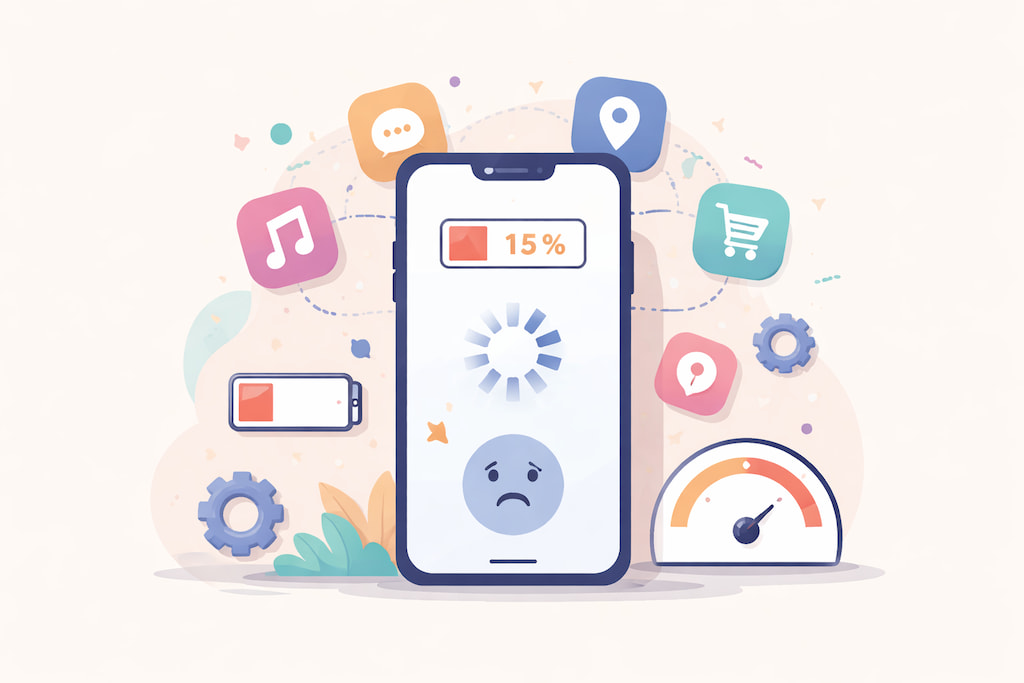
You’re halfway through your day when your phone suddenly starts lagging. Apps take forever to open, scrolling stutters, and worst of all, your battery icon flashes red at 15% despite barely using your device. Sound familiar?
What most people don’t realize is that some apps continue doing work after you switch away from them, even if it looks like they’re closed.
But worry not, this problem can be easily resolved. Keep reading to find out how.
How Background Apps Influence Your Phone’s Performance
1. They make your phone die fast
Battery drain from background apps usually comes from small, repeated tasks that keep the device from resting properly. It could be anything from syncing to location checks and push notifications.
Social media apps are some of the biggest reasons here. Facebook, Instagram, and TikTok don’t only fetch new content when you open them; they can keep refreshing feeds, preloading videos, and collecting engagement signals in the background even after you’ve left the app.
Email apps can be just as battery-consuming. They regularly check for new messages on a schedule, which adds to the power drain.
And you don’t see this happening. You just feel the result halfway through the day.
Over time, excessive battery usage can reduce the capacity of your lithium-ion battery. Batteries can only handle a certain number of charge cycles before you start to see a drop in their performance. When too many background apps keep your device constantly active, you’re burning through these cycles faster than necessary, which shortens your battery’s overall lifespan.
2. They slow your phone down even when you barely use it
If you’ve ever wondered why your phone feels slow when you aren’t even using it too much, it’s usually because background processes slow your device by constantly competing for limited resources.
RAM is the main pressure point. Each background app holds memory, caches, and services. When enough apps do this at once, the system starts juggling these processes: reclaiming memory, reloading apps more often, and moving data between RAM and storage. That’s when scrolling starts feeling choppy, apps launch more slowly, keyboard lags, and apps close unexpectedly.
This isn’t only a phone problem, either. Many common Mac fixes involve finding and disabling background processes that quietly drag performance down.
3. They overheat your phone
Heat is usually a sign of sustained work: CPU usage, network activity, location tracking, or repeated retries when the signal is poor.
When temperatures rise, the device may cut performance to protect components. That can make the phone feel even slower, and it can create a cycle where background activity causes heat, and heat forces the phone to reduce speed.
Over time, high operating temperatures can speed up battery wear and put stress on components. Normal warmth isn’t a major concern, but if your device gets hot while idle for a long time, it’s a good idea to check what processes are running.
4. They use data in the background
Battery isn’t the only resource being spent.
Background refresh can pull down media, sync content, upload analytics, or “check for updates” repeatedly.
On mobile data, this can show up as unexplained spikes. Even on Wi-Fi, constant background networking continues to drain battery.
5. They create privacy and security blind spots
Background apps can also create real privacy and security concerns.
Background access lets an app keep using the permissions you already granted, even when you think it’s closed. In the worst case, a malicious or compromised app can quietly collect sensitive data (like location, contacts, or other on-device info) and send it out without obvious signs.
Even your everyday apps can create risk when they combine broad permissions (especially “always-on” location) with constant background activity, effectively building a detailed picture of your routines.
And since most people install far more apps than they actively use, this becomes a scale problem: tens of apps you barely touch can still be part of your background footprint.
How to See What Apps are Running in the Background
You don’t need extra tools to spot background activity. Both Android and iPhone show you which apps are doing work behind the scenes, and they give you a few settings to limit it.
Start with battery usage
Open Settings > Battery and look at the “by app” breakdown. On iPhone, you can tap View All Battery Usage to see which apps used battery over the last several days and how much of that happened in the background.
What you’re looking for is simple: apps that show high background usage even though you barely opened them. Those are the best candidates to restrict.
Manage background apps on Android
On many Android phones, you can change background behavior on a per-app basis:
Go to Settings > Apps > See all apps > [App name] > App battery usage > Allow background usage. Тhen choose a mode.
You will see several options, which mean the following:
- Unrestricted: the app can run freely in the background (use this only for apps that truly need it, like messaging).
- Optimized: Android manages background activity automatically (best default for most apps).
- Restricted: the app’s background activity is heavily limited (use this for apps that keep draining power without a good reason).
Menu names vary a bit by manufacturer, but the “App battery usage/background usage” screen is the one that matters. This is the most direct way to manage background apps on Android without constantly force-closing things.
Manage background apps on iPhone
On iPhone, the closest equivalent is Background App Refresh, which controls whether apps are allowed to refresh content when you’re not actively using them:
Go to Settings > General > Background App Refresh. Then turn it Off entirely or disable it for specific apps.
If you’re troubleshooting a bad battery day, Low Power Mode also reduces background activity (including Background App Refresh and Mail fetch), which is why it often helps immediately.
Extra tips
Once you’ve restricted the most problematic apps, the rest is pretty straightforward:
- Reduce non-essential notifications (they trigger wake-ups).
- Review location permissions and avoid “Always” for apps that don’t genuinely need it.
- Uninstall apps you rarely use. If it’s not being used, it shouldn’t be allowed to run in the background.
In Closing
Background apps aren’t automatically bad. The problem is that default settings often allow far more background activity than most people would choose if it were visible.
If you do one thing, do this: check battery usage, identify the top apps that run in the background, and restrict them. Add a quick location permission audit, and you usually get a noticeable improvement without breaking the apps you actually rely on.
Author Bio:
Nikola Baldikov is an SEO content specialist with over 10 years of experience helping businesses grow their organic presence through strategic link building and digital PR. He specializes in creating data-driven content for SaaS and tech companies.