
Explore Assets In Hologram, Sketch, or Unlit Mode With Low Poly Generator

The 3D assets generated can vary based on the viewport treatment applied during the modelling and visual inspection. Tripo 3D offers different display modes that help to uncover forms, outlines, surfaces and spatial relationships. These modes are used for inspection purposes and do not alter topology, number of polygons or exported mesh structure. Comparing presentations before refinement can bring to light information that might be visually obscured during presentation.
Why Alternative Viewing Modes Matter During 3D Asset Exploration
Various types of displays highlight different visual attributes and allow you to examine an asset from multiple, practical points of view during the review. Normal and Solid View focus on surfaces, while Wireframe reveals edges and polygon density in the mesh. Sketch Style emphasizes the contours, and Hologram Style provides a technical and transparency look for structural observation. These differences distinguish presentation from underlying geometry and asset data for all those who use a 3d model maker. Multiple mode preview prior to refinement, sharing, or export helps to inform decisions for subsequent steps in asset development across workflows.

Understanding Hologram Mode For Structural And Visual Inspection
Hologram Style is a transparent, technically treated way to generate geometry that alters the appearance of forms. This presentation can facilitate the visual examination of silhouettes, intersections, internal spacing and component relationships. The style facilitates the planning of a scene, as the relationships become more visible and easier to discuss without depending on the material appearance. However, modification of the underlying low-poly mesh and topology is not done when changing the Hologram Style. Generation, refinement actions and subsequent editing in compatible 3D software continue to control the geometry.
Using Sketch Style To Examine Forms And Silhouettes
Sketch Style gives a visual treatment that is drawn and highlights outlines, contours and the general shape. This can be particularly helpful in the study of proportions before surface characteristics affect visual assessment. If you're looking to create a more stylized model, silhouette review is particularly helpful thanks to the ability of a low poly generator to create simplified forms. Good silhouetting allows the viewer to identify characters, props, buildings, vehicles and environmental objects from a limited amount of visual information. Looking at familiar characteristics in simplified lines can help to inform subsequent details and maintain the desired design aesthetic.

Exploring Unlit Presentation For Geometry-Focused Viewing
By eliminating scene-lighting influence, unlit presentation gives greater emphasis to geometry and the basic appearance of the surface. This more basic treatment can aid in getting shape observation away from highlights, shadows and other visual effects that rely on light. Unlit viewing eliminates those distractions and offers an additional means of assessing proportions, planes, and continuity of visible surfaces. It is still a choice for the viewport presentation, not a topology setting or polygon optimization process. A comparison of unlit and lit presentations can then indicate if perceived problems are a result of geometry or illumination.
Steps to Explore Assets In Hologram, Sketch, or Unlit Mode With Low Poly Generator
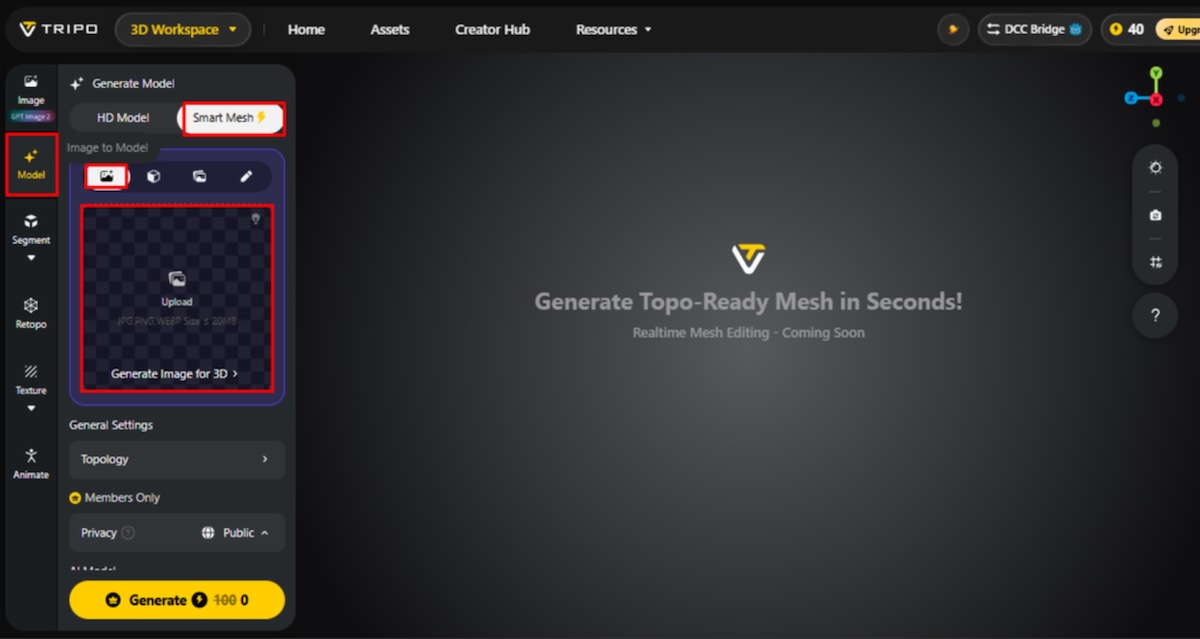
Step 1: Create Your Model
- Access Tripo 3D and sign up. Open the "Model" tab and select "Smart Mesh" under "Generate Model".
- Open the "Image to Model" tab. Drag and drop your image or click "Upload" to select it from your device.
Step 2: Generate the Asset
- Under "General settings", set your custom "Topology" for the model.
- Select either "Quad" or "Triangle" topology based on your desired mesh structure.
- Set a custom polycount according to the detail you need.
- If you are a member, choose your preferred "Privacy" options.
- Select a model from the list, including P1.0 or P2.0.
- Click "Generate Model" to begin generation.

Step 3: Explore and Export Different Views
- Explore the asset in "Normal", "Solid View", "Sketch Style", "Wireframe", or "Hologram" styles. You can also use "Texture" to add texture and explore additional styles.
- Use "Refine" from the bottom menu if you want to make further changes.

- Adjust the "Environment Settings" and camera controls. Use "Reset Camera" to restore the camera view.

- Select "3D Print" for physical output or click the "Share" tab to share your design.
- Finally, click "Export", choose the resolution, format, and filename, then click "Export" again to save the design.

Comparing Visual Modes During A Single Asset Review
- Normal View gives an overall familiar view of checking surfaces, proportions, and recognizable forms across assets.
- Solid View provides simplified shading, which may also make the geometry of the broad type easier to determine during inspection.
- Wireframe reveals polygon distribution, edge flow and dense or sparse areas in key areas.
- Sketch Style focuses on silhouette, contour and direction of design without relying heavily on material appearance.
- Hologram Style offers another structural view for intersections, spacing, and component relationships when reviewing.
- During the review, the modes switch the observations that are made, but the generated geometry remains the same.
Combining Visual Inspection With Texture And Refinement Controls
Visual modes are more useful when used in conjunction with the texture and refinement controls when evaluating assets. Alternate representations aid in the separation of material appearance and geometry, and texture provides surface information. Environment Settings can adjust the appearance of the environment to isolate the appearance of the asset from the distracting environment. Repeated inspections of the same subject can change the framing unexpectedly – Reset Camera resets to a useful viewing position. It is important to review the geometry and appearance together because the appearance of the form can be heavily influenced by textures, lighting and surface detail.
Using Visual Modes For Different 3D Workflow Stages
Various view modes can be used to enhance different phases of use, such as concept checking, inspection, presentation, planning and export preparation. Contours stay prominent and easy to communicate with Sketch Style, and make it a great tool for early visual discussion. Wireframe can be used for topology-based checks if edge distribution or polygon density is of concern and requires further investigation in key areas. When normal shading is insufficient, Hologram and Unlit presentations can be used. Normal and Solid View are still very helpful for more general viewings before textures, refinements and exports are finalized. These modes can be used for editable assets that are then translated to Blender, Maya, Unity or Unreal Engine.
Conclusion
Hologram, Sketch, Unlit, Wireframe, Normal and Solid View offer additional methods for examining created assets. The mesh is generated, and each presentation style shows different visual information automatically. Topology, geometry, textures and export settings are still individual components of the overall asset workflow. Comparing multiple views can be useful to find problems prior to refining, integrating into a scene, sharing, or exporting. Tripo 3D thus offers a concrete visual inspection layer for the modeling and scene-development workflows.